|
Article ID: 307
Last updated: 9 Feb, 2024
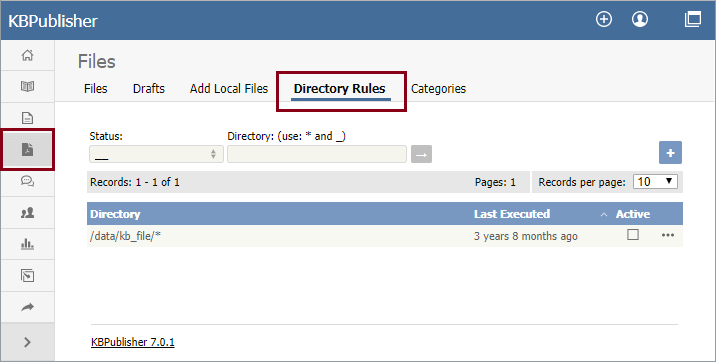
The Directory Rules screen allows you to set up the knowledgebase so that KBPublisher automatically checks the specified directory on the server or on Amazon S3 server every day and adds in KBPublisher links to any new files. Standard allowed and denied extension rules apply, based on your denied and allowed extensions set in the Files Settings. Note: this option doesn't move files, it adds links in KBPublisher to files on your server. If you move a file from the location KBPublisher linked to, the links to that file in the knowledgebase will be broken. To see and manage your directory rules, select Files in the main menu, and then the Directory Rules tab:
If you have a long list of directory rules, you can filter the list by rule status or by the directory the rule applies to, using the fields above the list of rules. Managing directory rulesCheck the checkbox in the Active column for a rule to enable that directory rule. Uncheck the checkbox to disable the rule. Click the [...] actions icon in the last column of a row to perform one of these actions on the directory rule in that row:
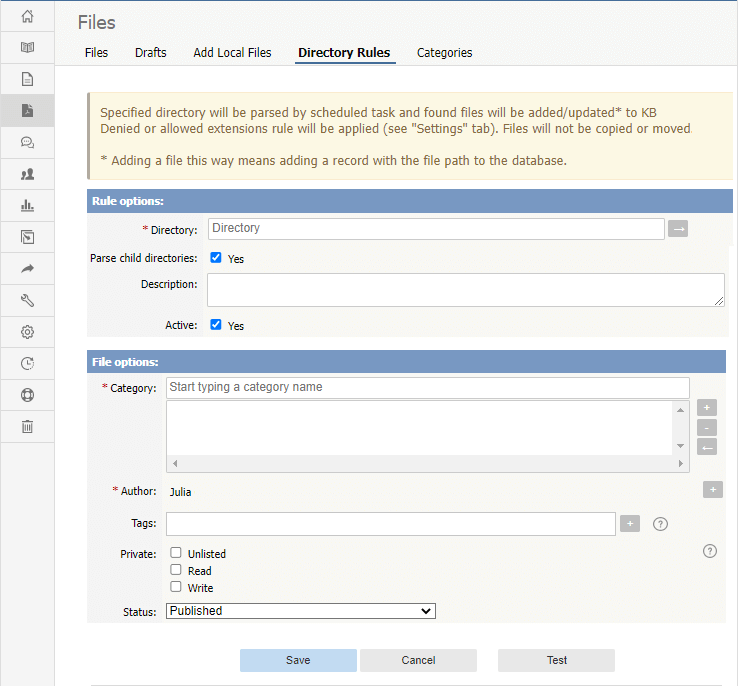
Adding new directory rulesTo add a directory rule, click the Add New button. Complete the form that appears:
Rule options:
File options:
To test the settings click Test. Click Save to save the new directory rule. Click Cancel to abandon your edits and close the form.
Article ID: 307
Last updated: 9 Feb, 2024
Revision: 12
Access:
Public
Views: 9277
Comments: 0
Also listed in
|