Home Learn More Purchase Knowledge Base Support Contact

Search:     Advanced search

Installing KBPublisher manually

Article ID: 114
Last updated: 28 Mar, 2008
Add comment
Views: 1666
Comments: 2

If you don't want to install KBPublisher using the install wizard, you can install it manually as follows:

  1. Unpack the distribution package.

  2. Place it somewhere in your web-server's document root, preferably the parent directory of your root web directory. For many people, this will be the public_html directory.

  3. By default, the distribution package is in a folder called kb, and this link will be included in the URL of the knowledgebase. For example, the default URL of the knowledgebase will be www.your_domain/kb/, where your_domain is your domain name.
    You can rename the 'kb' folder as you wish. If, for example, you rename it to 'kbbase' and place it in the document root directory, the URL for knowledge base will be www.your_domain/kbbase/.

  4. Create an empty MySQL database to be used by KBPublisher, or use existing one.

    Once you are at the MySQL console, you can run the following commands:
    mysql> CREATE DATABASE [database name]
    mysql> GRANT ALL ON [database name] TO [username]@[host] IDENTIFIED BY '[password]'

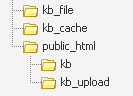
  5. Create a directory to store files uploaded by the File option. We recommend that you name it kb_file and place it somewhere outside your document root directory. It should not be accessible via http (web browser).

    Create a directory to store cache files. We recommend that you name it kb_cache and place it somewhere outside your document root directory. It should not be accessible via http (web browser).

    The structure of directories should look like this:


  6. If you are installing a new version of KBPublisher:

  • Create tables using db dump file at kb/setup/db/install.sql
  • Create an admin user using file at kb/setup/db/create_user.sql

If you are upgrading from a previous version of KBPublisher:

  • Use DB dump file kb/setup/db/upgrade_from_[version]_to_[version].sql
  • Do not forget to backup old DB.
  1. Configure your kb/admin/config.inc.php configuration file.

  2. In some cases you have to configure your kb/index.php file to set the correct path to admin directory and kb/rss.php, kb/captcha.php files to set the correct path to kb installation directory.
    Normally these will work without any modifications.

  3. Give your kb_upload, kb_file, kb_cache directory full write permissions.
    In unix you can type "chmod 777 <directory>". On Windows you must go through your webserver to give it write permissions.

  4. You're done.

    The public area screen will be available at www.your_domain/kb/
    The admin area will be available at www.your_domain/kb/admin/

    Login: admin
    Password: demo

    DO NOT FORGET TO CHANGE PASSWORD!

  5. Log on to KBPublisher and go to Settings tab to configure settings.
    Make sure you set correct email address at Setting -> Email .

  6. Read the FAQ
This article was:   Helpful | Not Helpful Add comment
Also read
document Installing KBPublisher

Prev   Next
Installing KBPublisher      Upgrading KBPublisher

Showing: 1-2 of 2  
Comments
kristau | 28 Mar, 2008 01:34 PM
Missing from these instructions is the following very important settings change in admin/config.inc.php:

$conf['allow_setup'] = 0;

This disables the setup wizard.
blongo | 03 Apr, 2008 12:04 PM
Thanks kristau, that helped me out.

Prev   Next
Installing KBPublisher      Upgrading KBPublisher

RSS

© 2008 Double Jade LLC | customer.service@kbpublisher.com