Home Learn More Purchase Knowledge Base Support Contact

Search:     Advanced search

Installing KBPublisher

Article ID: 115
Last updated: 25 Jun, 2008
Add comment
Views: 5107
Comments: 0

The easiest way to install KBPublisher is to use the installation wizard.

The install script is extremely simple. The only action required on your part is to click the next button when each step is completed and you will be prompted for each action that is required from your side to proceed with installation. However, there are some things you need to do before you start to ensure the process runs smoothly.

Before you start

Check that:

  • PHP is installed on your server
  • MySQL is installed on your server
  • ionCube loader is installed or enabled

If any of these are not, install these first.

Create your database

If you do not already have a database that you want to use, you next need to create your database.

At the MySQL console, run the following commands:

mysql> CREATE DATABASE [database name]
mysql> GRANT ALL ON [database name] TO [username]@[host] IDENTIFIED BY '[password]'

e.g. 

CREATE DATABASE knowledgebase
GRANT ALL ON knowledgebase TO me@mydomain.com IDENTIFIED BY xda44f54fddGHRECT

This will be the database and user information that you later type in when the wizard asks for it.

Install KBPublisher using the wizard

  1. Unpack the distribution package

  2. Place it somewhere in your web-server's document root, preferably the parent directory of your root web directory. Usually the root directory will be public_html or httpdocs.

  3. You can rename "kb" folder as you wish (it will be a part of your URL for knowledge base)
    For example if you rename it to "kbbase" and place it in document root directory (document root/kbbase)
    the URL for knowledge base will be www.youdomain.com/kbbase/

  4. Type http://<your_domain>/<kb_installation_path>/setup/index.php into your browser address line, where <your_domain> is your domain name, and <kb_installation_path> is either 'kb', if you retained the default, or whatever folder you renamed it to. For example, if you used the domain name in step 3, this would be www.yourdomain.com/kbbase/setup/index.php.
    The installation wizard comes up.

  5. Follow the installation wizard instructions.


Notes

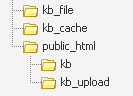
  • We recommend the following directory structure (and this is what the installation wizard creates).


    kb_file - for uploads via "Files" module
    kb_cache - for cache files
    kb - knowledgebase code (rename it as you wish, it will be a part of your URL for knowledge base)
    kb_upload - for uploads via HTML editor
  • The kb_file, kb_cache and kb_upload directories must be writeable by PHP. The installation wizard creates these directories if you run a Windows system. However, if you are a Linux user it may fail due to access problems. In this case you will need to create the directories manually and CHMOD them to 0777.
  • We recommend that you place the kb_upload directory in the parent directory of your root web directory. If you later decide to move your knowledgebase to new location it will help you to keep paths correct for uploaded images.

This article was:   Helpful | Not Helpful Add comment
Also read
document Installing KBPublisher manually
document KBPublisher v3.0 release notes

Prev   Next
System Requirements      Installing KBPublisher manually

RSS

© 2008 Double Jade LLC | customer.service@kbpublisher.com