Home Learn More Purchase Knowledge Base Support Contact

Search:     Advanced search

The article input screen explained

Article ID: 40
Last updated: 04 Mar, 2008
Add comment
Views: 865
Comments: 0

KBPublisher quick add

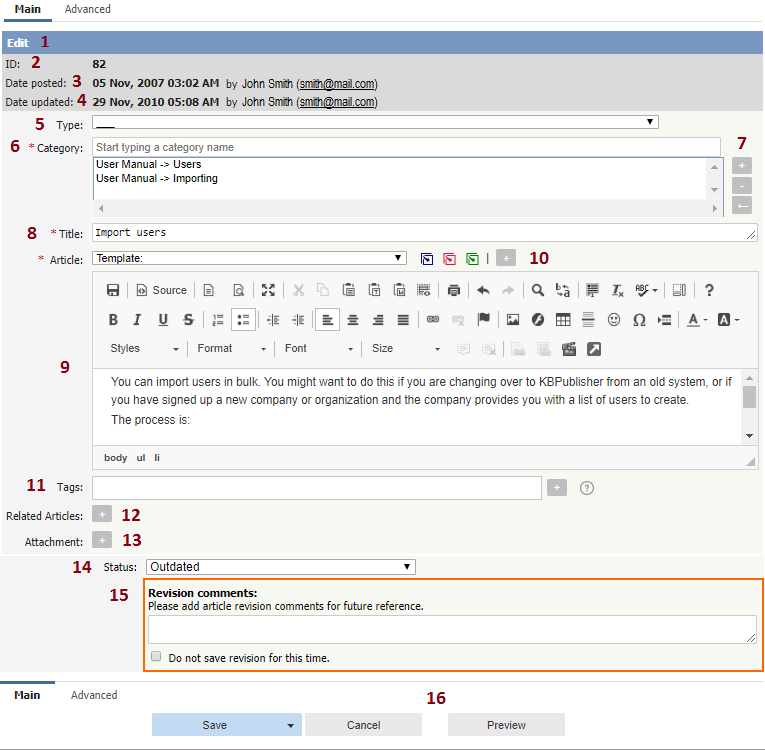
  1. The blue line at the top of the screen denotes whether you are adding a new article, or editing an existing one.

  2. If this is an existing article, it will have an Article ID. This is the record number under which the article is stored in the database.

  3. Type is has two purposes. It is used to group records for searching and it can also provide a default template for the article. It is not compulsory. If you want to remove a type you have already included, set the Type back to the first item in the drop-down list (___).
    Articles types can be managed in Settings->Lists->Article Type.

  4. Category controls where the article will be placed in the knowledgebase. It is, effectively, the menu or the table of contents. Note the red '*' to the right of the word 'Category'. This means that this field is compulsory. Note also that some of the categories are red. These categories are private categories. When you select a private category, KBPublisher lists roles and restrictions beneath the category list so that you know which users can access the article.

  5. You can place the article in more than one category by selecting other categories from the Mirror in Categories list. You can select more than one by holding the <Ctrl> key down as you click. To clear any mirrored categories, click on None.

  6. Title is the heading that goes on the page, and also the link that is displayed under the category (table of contents). It, too, is compulsory.

  7. The Article is the content that people read. Again, it's compulsory. Type your article into the edit box. Move your mouse over each of the icons in the edit toolbar to see what each one does, or you can read about each function in edit toolbar explained.

  8. Templates can be inserted into the text by choosing the template from the drop-down list and then clicking on Insert, Replace or Include template. Using templates in articles describes how templates work and how to use them.

  9. Meta Keywords / Tags are search words. If you define a keyword here and a user then searches using that keyword, this article is displayed. Use a comma to separate each keyword.
    Some external search engines may also use this for search engine optimization.

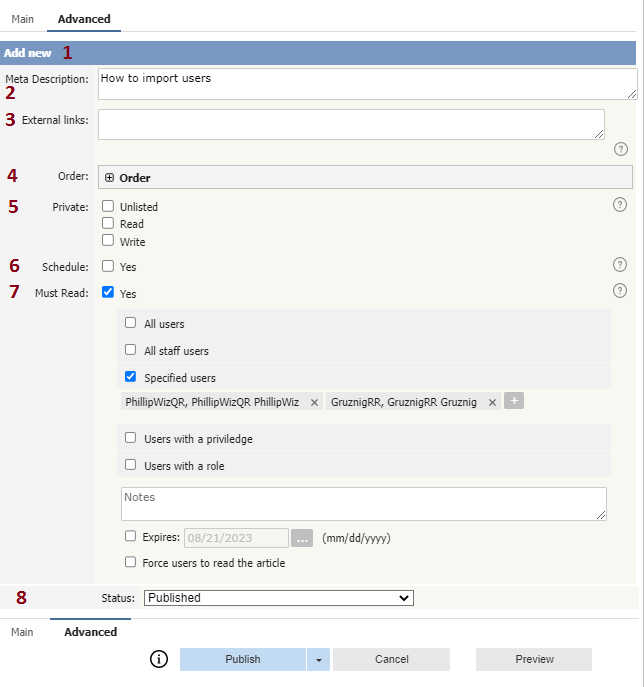
  10. The Meta Description is a brief summary of what is on the page. This description is often used by search engines when displaying details of a page.

  11. You can add links to other web sites by adding them to the External links field. Type or paste the address (URL) of the page you want to link into the field. These then appear at the bottom of the article under the heading 'External Links'.

    You can append an optional title to each link using a pipe symbol to separate the url and title.
    Use an <Enter> to separate links. Links must begin with http://.

    e.g. http://kbpublisher.com | KBPublisher

  12. You can easily cross reference other articles in your KBPublisher database by choosing Related articles. You can link to text within the article, or you can add a link that is displayed under the heading 'Also read' at the bottom of the page. How do I add a link to an article explains the process in more detail.

  13. You can link to files in your KBPublisher database by choosing Attachment. Again, you can add it as a link to text within the article, or you can add the link at the bottom of the page under the heading 'Attached files'. Attach a file to an article explains this in more detail.

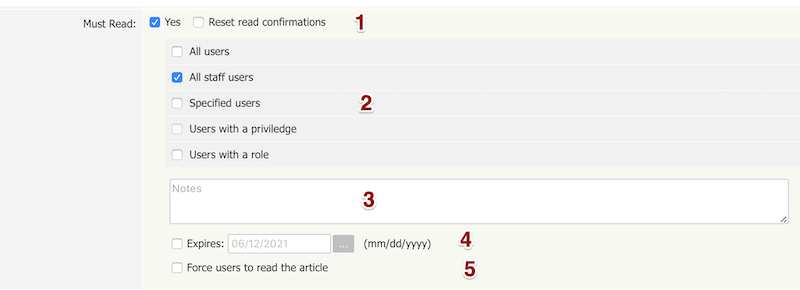
  14. Checking the Private button means that the user must log on to read the article.

    Nominating that an article is private brings up a list for you to choose Access for selected roles only. This allows you to nominate which groups of users (users in which roles) can actually read the article. Choose All if you just wish to make the article private but still want everyone to be able to read it.

  15. When you select a category or mirror categories, order fields appear here to allow you to order the articles within the category. By default, the article is added to the end of the list. Use Order to move it up or down in the list.

  16. Use the Status to specify whether this article is published, meaning users can read it, not published, or pending (approval required).
    Articles statuses could be managed in Settings->Lists->Article Status.

  17. The OK and Cancel buttons are standard. OK means save the article, Cancel means exit but don't save.
    Save as new
    means save the article a new one. This is effectively a copy.
This article was:   Helpful | Not Helpful Add comment
Also read
document Link to another article (related articles)
document Using templates in articles
document Attach a file to an article (attachment)
document Private articles

Prev   Next
Knowledgebase      The HTML editor toolbar explained

RSS

© 2008 Double Jade LLC | customer.service@kbpublisher.com