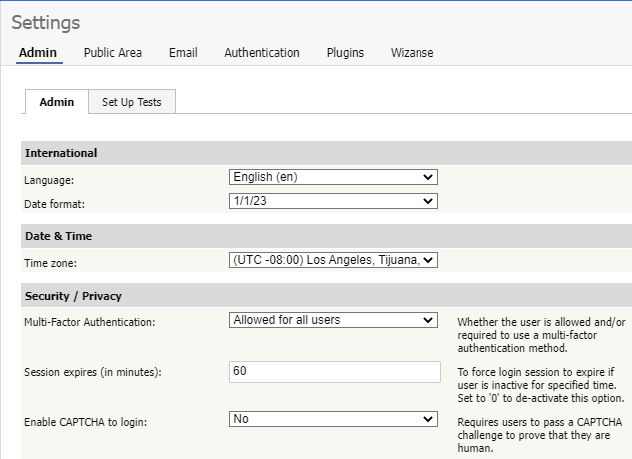
The Admin tab is the first tab under Settings. The fields on this tab control KBPublisher's configuration. Only administrators can change the settings on this tab.
You can reduce the number of fields displayed by typing key words into the Filter field, making it easier to find the fields you want. Restore the display by removing any entries from this field.
Click Save to save your edits; click Set Defaults to restore the original values for all fields.
International
- Language - Select the language for field labels and other onscreen texts for your KBPublisher.
- Date format - Select the format in which the date will be displayed in the system.
Date & Time
- Time zone - Select the time zone to use. If your team is distributed across many time zones, the time zone you select may not be the one for the area where you live, but rather the one where the majority of your team lives and works.
Security / Privacy
- Multi-Factor Authentication - Controls whether the user is allowed and/or required to use a multi-factor authentication method.
Note that if you want the built-in MFA to be available for SAML authentication, first select The same as MFA Policy setting in Authentication → SAML → Multi-Factor Authentication.
- Session expires (in minutes) - Controls how long before the user is automatically logged out when they are not actively using the system. If you wish to turn automatic logout off, set this to 0.
- Enable CAPTCHA to login - Controls whether a user has to pass a CAPTCHA test, typing the test displayed in an image, in order to log in. The displayed image looks like this:

- Allow automatic sign-in - If enabled, users do not need to re-enter their username and password when returning to the site. Note: This option requires that the site be configured for SSL.
- Allow concurrent logins - Controls whether to allow multiple logins for a single user.
- Allow login with email - If checked, user can use his email as Username on login.
- Use 'Email' for 'Username' - If checked, email will be used as the Username.
- Allow users to delete account - Controls whether to allow users to delete their own account. User data will be moved to the trash but is recoverable. Content will not be deleted. If you select Not allowed, user will be able to send a delete request.
Password
- Password strength - Defines rules that passwords must meet, such as length and type of characters allowed and disallowed.
- Enable CAPTCHA to reset password - Controls whether a user has to pass a CAPTCHA test, as described above, in order to reset the account password.
- Password Rotation Frequency - Defines how frequently password changes are required. Available options are: Off, 90 days, 180 days, and 1 year.
- Password Rotation Policy - Choose one of the following options:
- Advisable - On login, notify the user that a password change is recommended.
- Mandatory - Require a password change before the user can continue.
- Password Rotation Previous Passwords - Set if user is allowed to re-use previous passwords.
- Password required to change password - Select to require the user to provide their current password as well as the new password they want to change to.
- Logout after password change - Controls whether the user will be logged out after password change.
API
- Enable API access - Select to allow users access to the KBPublisher API.
- Secure API connection - Select to require a secure API connection (the URL starts with https:// instead of http://).
Look & Feel (settings)
- Number of records per page - Set the number of records displayed per page when a user first goes to that page. The user can temporarily change the setting while on the page.
- Sort articles by - Specify the initial sort order for articles, which the user can change temporarily when working with a list of articles. The options are:
- Title (sorted alphabetically)
- Date added (newest first)
- Date added (oldest first)
- Date modified (newest first)
- Date modified (oldest first)
- Sort files by - Specify the initial sort order for files, which the user can change temporarily when working with a list of files. The options are the same as for the previous field.
- Form buttons position - Choose where form buttons display on the page: always visible below the form, or at the bottom of the page.
HTML Editor
- HTML editor file directory - Required. Provide the location for images you use in articles or files that you link to. KBPublisher uses this location when you perform actions like insert a picture into an article.
Scheduled Tasks
- Send critical messages to admin - Select to send the administrator an email alert of critical errors in scheduled tasks so the administrator can respond quickly. Define the email address to receive these messages in the Email settings tab.
- Allow HTTP requests - Whether to allow HTTP requests to run scheduled tasks.
- Allowed IP addresses for HTTP requests - If you are using HTTP to run scheduled tasks, enter IP addresses to allow requests from. Enter IP addresses separated by ';' or a range of IP addresses separated with a '-'
Example: 127.0.0.1; 210.234.12.15; 192.168.1.1-192.168.255.255
Tags
- Allow to create tags - Select to let users create custom tags when adding a record. If this is not selected, users can only choose from among the existing tags.
Article
- Maximum number of revisions - Specify how many past versions of a document are stored. If you set this to 5, then when the document is changed and saved the sixth time and after, the oldest revision is deleted so only the five most recent versions are retained. If you don't want to keep article history at all, set this to 0.
- Autosave recovery information every - Specify in minutes how often KBPublisher should automatically save an article a user is editing. To turn autosave off, set this to 0.
- Default category - If you select a category for this field, all new articles will by default be part of that category. Select None to disable this option.
Files
- Files directory - Required. Set the location where files are uploaded to, in this server path format.
- Max file size - Set the maximum file size, in kb, that users can upload (1024 kb = 1 mb). The maximum you can set depends on your php settings: see Handling file uploads.
- Allowed extensions - You can specify the file types that can be uploaded, separated by commas, such as "txt,png,doc,docx". Note: if you enter anything in this field, KBPublisher ignores any entry in the following field.
- Denied extensions - Specify types of files that cannot be uploaded, separated by commas, such as "php,exe,asp,cfm".
- Maximum number of revisions - Specify how many past versions of the file are stored. If you set this to 5, then when the file is changed and saved the sixth time and after, the oldest revision is deleted so only the five most recent versions are retained. If you don't want to keep file history at all, set this to 0.
- Extract raw text - Select to have KBPublisher try to extract the text from PDFs and similar files so it can include the content of the files when the user does a search.
- XPDF installation path - XPDF extracts content from PDF files to make that content searchable. If you have XPDF installed, provide the relative path to it in the form "/user/bin/". To disable this option, enter "off".
- Catdoc installation path - Catdoc extracts content from .doc files to make that content searchable. If you have Catdoc installed, provide the relative path to it in the form "/user/bin/". To disable this option, enter "off". Note: You can use either Catdoc or Antiword (below). You don't have to use both.
- Antiword installation path - Antiword extracts content from .doc files to make that content searchable. If you have Antiword installed, provide the relative path to it in the form "/user/bin/". To disable this option, enter "off".
- Default category - If you select a category for this field, all new files will by default be part of that category. Select None to disable this option.
- Spy Directory missing files policy - Select what the auto-load directory files functionality should do when it finds a file listed in the database that is no longer on the server.
- Allowed directories for local files - List allowed directories for adding local files. If empty, any directory is allowed.
- Allow access to Amazon S3 - Specify Amazon S3 credentials to link S3 files to your KB.
Reports
- Keep user activity records for - Choose period during which user activity records will be stored in KB.


