|
|
The Public Area Tab Explained
Article ID: 85
Last updated: 9 Feb, 2024
The Public Area tab is the second tab under the Settings menu. The settings here apply to the public view -- that is, to what users see.
Only an administrator can change the settings on this page. The page is divided into four further tabs:
- Common, for settings which are common to the whole knowledgebase
- Articles, for settings which are specific to articles
- Files, for settings which are specific to files.
- Page Design is to design pages in Public Area.
Titles/Meta/Navigation
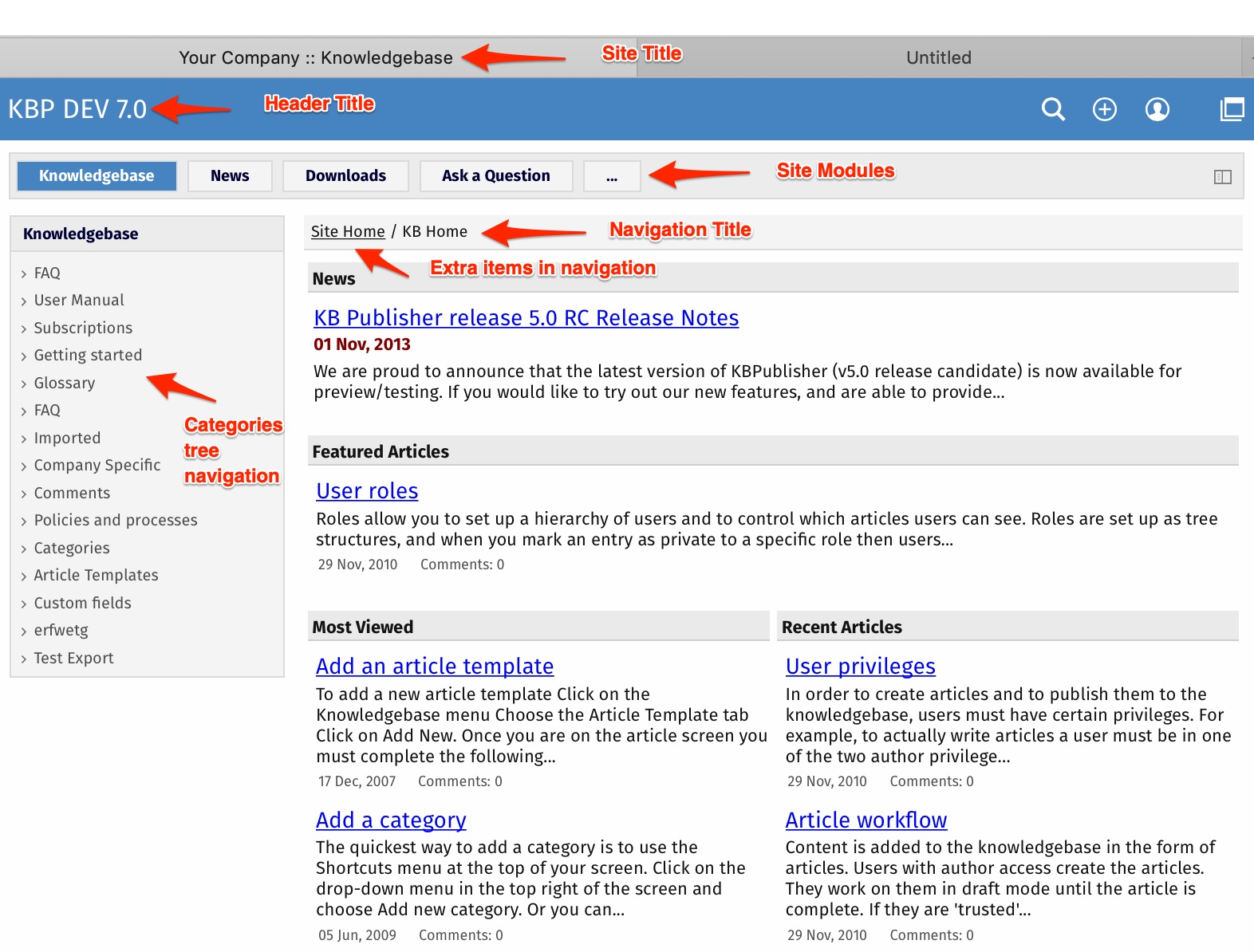
- Site title (meta) - set the meta title of the knowledgebase.
- Site keywords (meta) - set the meta keywords of the knowledgebase.
- Site description (meta) - set the meta description of the knowledgebase.
- Header title - the text displayed in the header.
- Navigation title - the home page in the navigation bar.
- Display entry title in navigation - show or hide the article title in the breadcrumb trail.
- Extra items in navigation - manage extra links in the breadcrumb trail
- Site modules / Menu items - manage main KB navigation and sections, sort menus, add extra items.
- Search engine friendly URL - controls what you type into the address line when you want to jump direct to an item in the knowledgebase.
Security/Privacy/Registering
- Access for registered users only - only people who are registered users can view the knowledgebase.
- Allow registration - whether registration allowed or not.
- Agree terms - if checked defined terms section will appear under registration form and users must agree to these terms to complete their registration.
- Approval required for registration - whether approval required for new registered users.
- Privilege for new registered users - this privilege will be set for all users registered through registration form.
- Role for new registered users - this role will be set for all users registered through registration form.
- Enable CAPTCHA for registration means the user has to type in a confirmation code before they can register. This is to stop scamming.
- Login policy determines whether a user gets a login option on the public view screen, whether they don't get the login option but can still login (if they know the link to the login page), or whether they cannot login at all.
- Private policy - controls whether content that is locked because it is private is displayed in the menu with a locked symbol, or whether it is simply not visible at all. When this is set to Do not display entries then the user only sees items he can access. When it is set to Display entries with 'Locked' sign, then the user can see the entries title but he cannot read them.
- Cookie consent banner - if set, a cookie consent banner will be displayed. The banner will be hidden when the user agrees to it.
CAPTCHA
- CAPTHA type - If enabled, users must pass a CAPTCHA challenge to prove that they are human. CAPTCHA technology protects your site from spam and abuse.
Look and Feel
- Page template - customize your KB to match your style. Click [...] to add custom header, footer, JavaScript and set colors for elements.
- View format - allows you to set your knowledgebase up with a left menu or without.
- Left menu type - can be a standard menu tree, or it can be a follow-on menu that allows users to click on one article after another to read them.
- Header - whether to display or not the header. If you uncheck, then the Header title (specified in section 1, above) and Header logo are not be displayed.
- Header logo - upload a logo to be added to the header section.
- Content width - controls page content width.
Setting up the look and feel is covered in more detail in the article that explains how to change the way articles are displayed.
Look & Feel (mobile)
- Header logo for mobile version - Choose a logo that will appear in "header" of the mobile version.
Feedback
- Allow contact us - set whether users can contact you using the Feedback facility through. You can set this so that all users can contact you, only registered users can contact you, or no users can.
- Enable CAPTCHA - controls whether a user has to pass a CAPTCHA test, typing the test displayed in an image, in order to add a feedback.
- Enable quick response - turns off the automatic searching and turns the form into a static feedback form. i.e. users type their message into the form and email it to the supervisor, but KBPublisher doesn't do the search.
- Allow attachments - says whether users can attach documents to their mail. The value here is the number of files that can be attached. When this is set to 0, attachments cannot be included.
- Allowed extensions - controls the type of files that can be attached.
- Send attachments with e-mail - must be set if a user is allowed to send attachments in the Feedback form.
Sharing
- Allow social sharing - whether to allow visitors to share content on social networking sites.
- Social networking sites - click [...] to manage Social Sites.
- Allow email sharing - whether to allow visitors to share articles via email.
Tags
- Display tags - whether to display tags for articles, files, news, etc. If set tot ON, tags will be displayed below an article.
Search
- By default search in - defines whether the initial search searches the whole knowledgebase, only in articles, or only in files.
- Search preview character limit - how many characters display in search results.
- Search by article ID - defines search behavior when user types a number in the search field. You can disallow searching by article ID or allow it and choose between two options: search in content first or search by ID first. Defaults to "Search in content first then by ID"
- Search suggest - whether to offer suggestions when the user types in the search field. It suggests most popular searches based on other searches.
- Search spelling suggest - whether to suggest spelling when the user types in the search field.
- Search filter - controls whether to display the search filter in search results.
- Default search filter - controls whether to display filters if searching all the content.
- Search filter items - defines what filter items to display in the search filter.
Subscription
- News subscription - defines whether to allow users to subscribe to news.
- News subscription frequency - defines how often news emails will be sent.
- News subscription time - defines time of the day when emails will be sent. The list becomes active when you select Daily in the News subscription frequency field.
- Content subscription - definhttps://www.kbpublisher.com/kb/admin/index.php?module=knowledgebase&page=kb_draft&action=update&id=204es whether to allow users to subscribe to articles and files.
- Content subscription frequency - defines how often emails with new or updated articles and files will be sent.
- Content subscription time - defines time of day when emails will be sent.
- Content subscription weekday - defines a day of the week when emails will be sent.
- Content subscription day - defines day of the month when emails will be sent.
RSS settings
Look and feel
- Number of articles per page - how many articles display per page.
- Sort articles by - how to sort articles.
- Featured articles in a category - how many featured articles display per category. If it is set to 0, featured articles are not shown.
- Display "Also listed in" - whether to show or not other categories this article is published in, displayed below article.
- Others in this category - controls whether or not the 'Others in this category' sub-heading is displayed at the bottom of the screen, and how many items are displayed if it is.
- Display Prev / Next navigation - controls whether the user sees links to the next article and previous article at the bottom of the screen.
- Category columns - defines how how many columns the categories are displayed in on the page in public view. If this is set to 0, no categories are displayed.
- Article ID zero padding - if you choose to include the article number in an article title prefix, you can also say how many digits the number will have by specifying number here. For example, if you had 100 questions and chose an article title prefix of 'Q', by default they would be numbered Q1...Q100. If you would prefer it to be Q001: .. Q100 set the entry ID padding to 3.
- Article title prefix pattern - you can add text to the front of an article heading using this setting. For example, if your article is named Keeping Pets, you can use the article title prefix pattern to make this: Question: Keeping Pets. Even better, if you use types in your knowledgebase, you can customize the article prefix to each type. Suppose, for example, you have two types of articles. One is Facts, the other is General info. If you wish you can change the title to include the type. e.g. Fact: Climate change is happening and General info: What are greenhouse gases?.
You can include the article number as part of the article title prefix as well. e.g. Q: What can I do to help?
- Display Article ID - whether to display article ID and date updated below article title.
Table of contents
- Generate TOC - Whether or not to generate a table of contents (TOC). If checked, TOC will be generated at the top of an article.
- TOC tags - The list of heading tags to use to generate the table of contents. Example: h1,h2
- Minimum article characters - Specify number of article characters. If the number of characters in an article is less than this limit, a TOC will not be generated.
- Minimum tags - Specify number of tags. If the number of headings is less than this limit, a TOC will not be generated.
Comments
- This section allows to set up article comments settings. How many comments per page, if approval required, etc.
Rating
- Allow rate articles - lets the user rate articles in your knowledgebase.
- Rating type - Ratings can be text, helpful/not helpful, or you can use a star system where the user rates the article out of five stars.
Feedback
- Allow feedbacks - Enable this option to allow visitors to send article feedback such as rating comments, reporting article issues, etc.
Sharing
- Allow social sharing - Enable this option to allow visitors to share content on social networking sites.
- Social networking sites - Choose social media that will be available to users.
- Allow email sharing - Enable this option to allow visitors to share articles via email.
Article preview format
- Article Character Limit - number of characters displayed in the preview.
- Display updated date - whether the last date the article was updated is shown.
- You can also specify whether to display the rating, number of comments and number of views.
Article information block
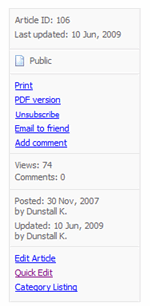
- Block Position - where to display information block.
- Display article block - displays the article ID and when the article was last updated.
- Display private block - shows whether the article is public or private. If an article is private, a user can hover his/her mouse over the key graphic to see which roles have access.
- Display author block - displays the date an article was created and the name of the author. If the article has been updated since, it also displays the name of the person who last updated it and when that was. The format of the author/updater's name is controlled by the user format for author block.
- You can also choose to include whether or not to display the number times this article has been viewed and commented.
Article actions block
- Block Position - where to display actions block.
- Float Panel - manage article actions items.
- You also can define whether to display each of the following actions:
- Print
- Export to PDF
- Save (saves an article to user's favorite list )
- Pin
Look & Feel
- Number of entries per page - how many files display per page.
- Sort files by - how to sort files.
- Category columns - defines how how many columns the categories are displayed in on the page in public view. If this is set to 0, no categories are displayed.
File preview format
- Display number of downloads - controls whether users see how many times the file has been downloaded.
- This section controls page layouts. It is available for Index and Downloads pages. You can manage block position, add custom blocks, and create different grids.
Article ID: 85
Last updated: 9 Feb, 2024
Revision: 13
Access:
Public
Also read
|


