KBPublisher can be extensively customized and you can get some spectacular results if you want to design your own site.
The default format of the KBPublisher Public Area is:
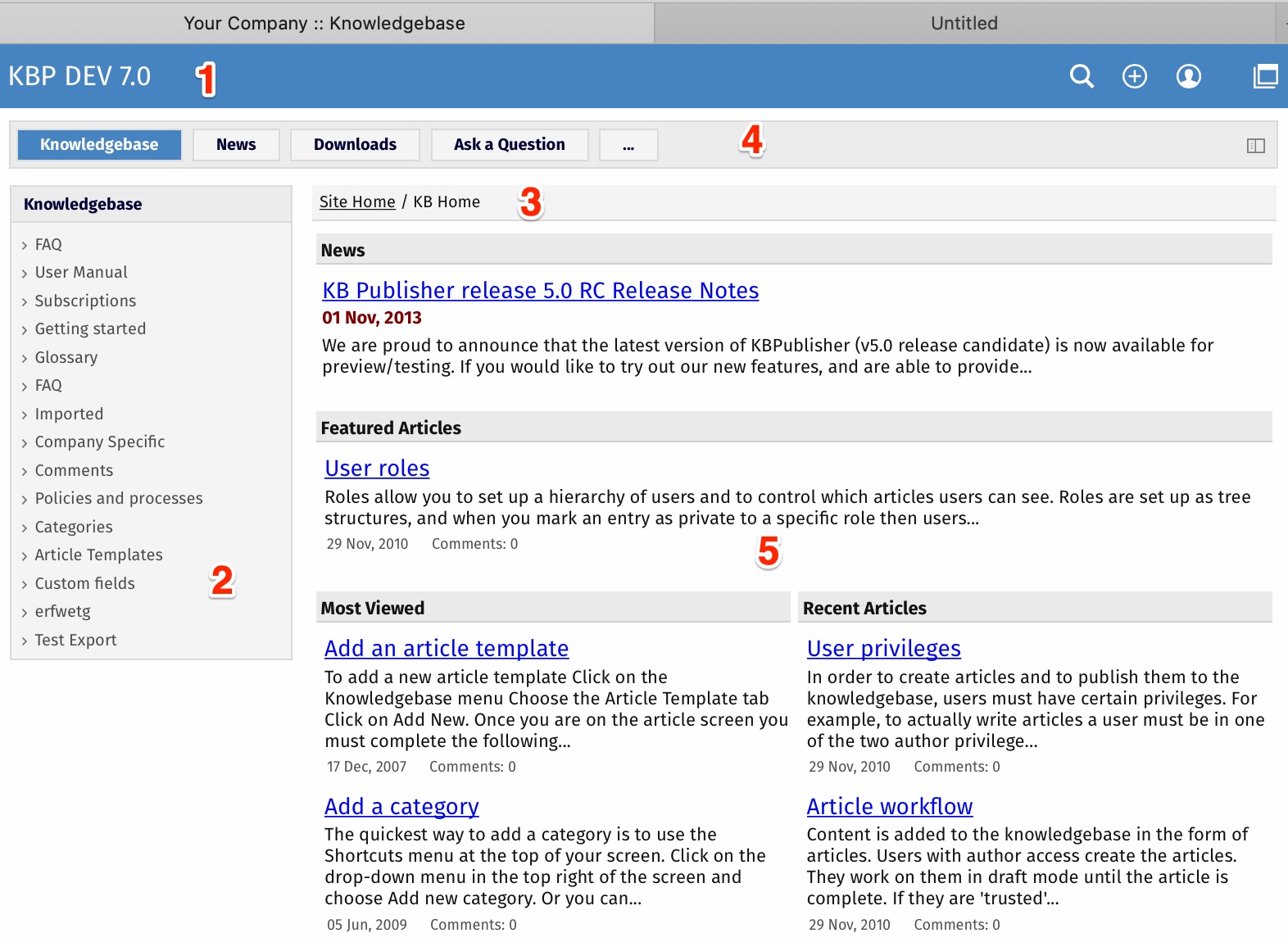
- The standard header is controlled by the Header field.
Settings -> Public Area -> Common -> Header
You can:
- Include the header by checking the Header field
- Remove the Header by un-checking this field
If no header is assigned, a header is controlled by the Header title field.
Settings -> Public Area -> Common -> Header title
- Likewise, the left menu is standard. The menu is controlled by the View Format field which is under Look & Feel.
Settings -> Public Area -> Common -> View Format
The menu choices are either Browseable, Left Menu or Intranet.
- Directly under the header are menu options and a breadcrumb trail.
The menu options, which are extra links that can be included in the menu, are displayed first. For example, you might want to include a "Home" link if the knowledgebase is part of a larger site.
The menus are controlled by the Extra links in navigation field.
Settings -> Public Area -> Common -> Extra items in navigation
To include extra links, click the [...] button and you can manage extra links.
The breadcrumb trail is displayed after any extra links. It reflects the article you are currently viewing in the knowledgebase.
- Site modules/Menu items.
The menu options are extra links in navigation menu.
The menus are controlled by the Site modules/Menu items field.
Settings -> Public Area -> Common -> Site modules/Menu items
To manage menu items, click [...].
- This area will change depending on "Page Design" settings.
Settings -> Public Area -> Page Design.
In the "Page Design" section you can manage built-in blocks, add custom blocks, and organize blocks on the grid.


