Users can contact the knowledgebase by sending a feedback request. They can use the feedback form to ask questions, provide general feedback or even to suggest updates.
Different subjects can be emailed to different moderators.
The feedback request also provides a 'Quick Response' answer. As the user types their question, KBPublisher searches for articles appropriate to the words typed and brings back the five articles most likely to match the query. If the answer is in one of the listed articles, the user doesn't have to send the query at all. They can simply click on the article instead.
The request is sent to an email address defined in the settings.
The person who receives the email can:
- Reply by email, or
- Publish the feedback to the knowledgebase as an article, or
- Both reply and publish.
A user with administrator, moderator or editor access can view the feedback by clicking on the Feedback menu.
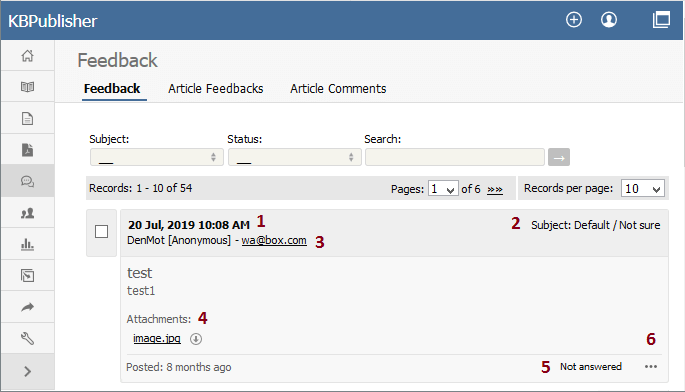
This brings up a list of the feedback that users have sent.
- The date and time the user sent the feedback.
- The subject area the user chose from the list of subjects when they sent the mail. The person reading the mail may also change the subject.
- Username and Email of the user who has sent the feedback.
- Attachments shows files the user has attached with their feedback.
- The status of the feedback shows if an answer has been sent to the user or not.
- When clicking the [...] icon, the menu with the following commands opens:
- Click Details to view the history of messages sent to this feedback. The command is available only for a feedback with the Answered status.
- Click Create An Article to add a new article based on this feedback to the knowledge base. A screen for creating a new article opens when selecting the command.
- Click Set status - Answered to change the feedback status from Not answered to Answered.
- Click Set status - Not answered to change the feedback status from Answered to Not answered.
- Click Answer to reply to the user by email.
- Click Delete to delete the user feedback.
It is quite common to both answer the user by email and then post to the knowledgebase. For example a user might ask a question that you think deserves to be a knowledgebase article, so you write the article and then email the user back to say that the answer is now on the knowledgebase.
The templates for the initial email and the reply are controlled in the settings.


