Graphics must be uploaded to the server before you can display them on the page. You can upload them as part of adding the image.
You can "drag and drop" an image to the HTML editor, it will added to cusror position of an editor.
- Add or edit the article you wish to add the picture to
- Place your cursor where you want to add the picture
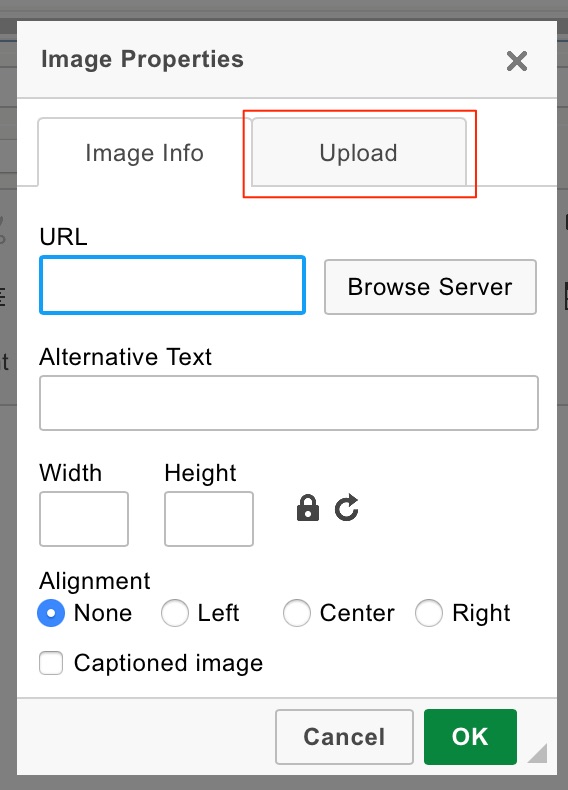
- Click on the Insert/Edit Image icon in the Article edit box

- Click on Upload
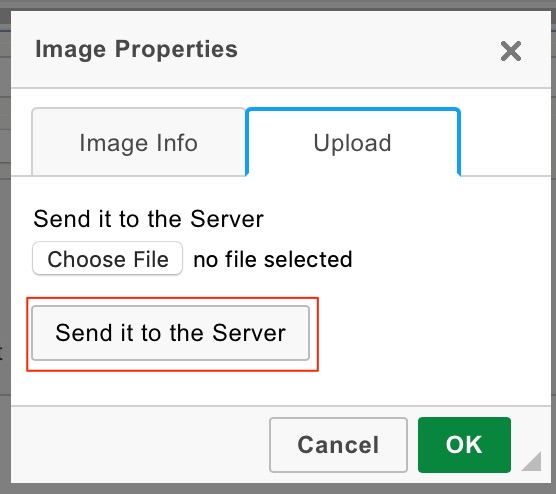
- Click Choose File to find the file you want to upload, click on file this brings you back to the upload screen.
- Click Send it to the Server.
- This takes you back to the Image Properties box with the address of the file in the URL line.
- This is the minimum you need to do to add the picture. You can optimize it by adding alternative text, resizing it, adding borders or margins, adding links or modifying the style.
- Click OK to add the picture to the article.
If image already on server
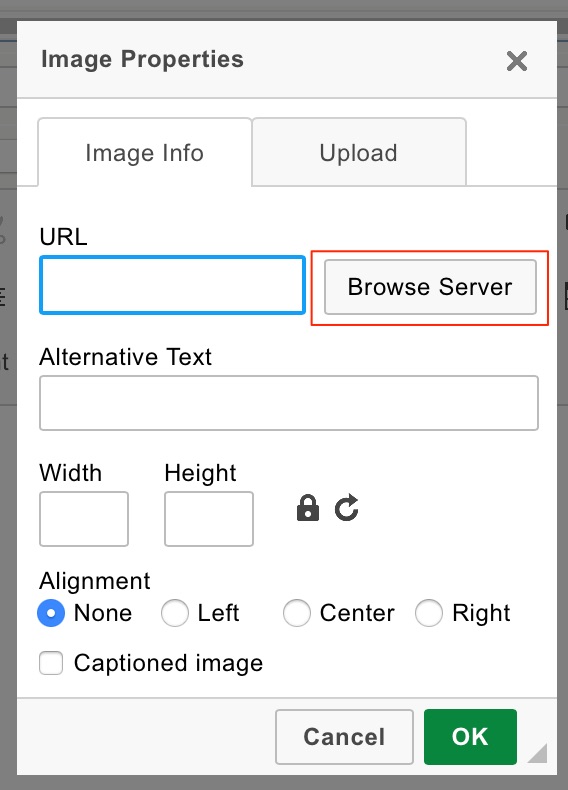
- Click on the Browse Server button
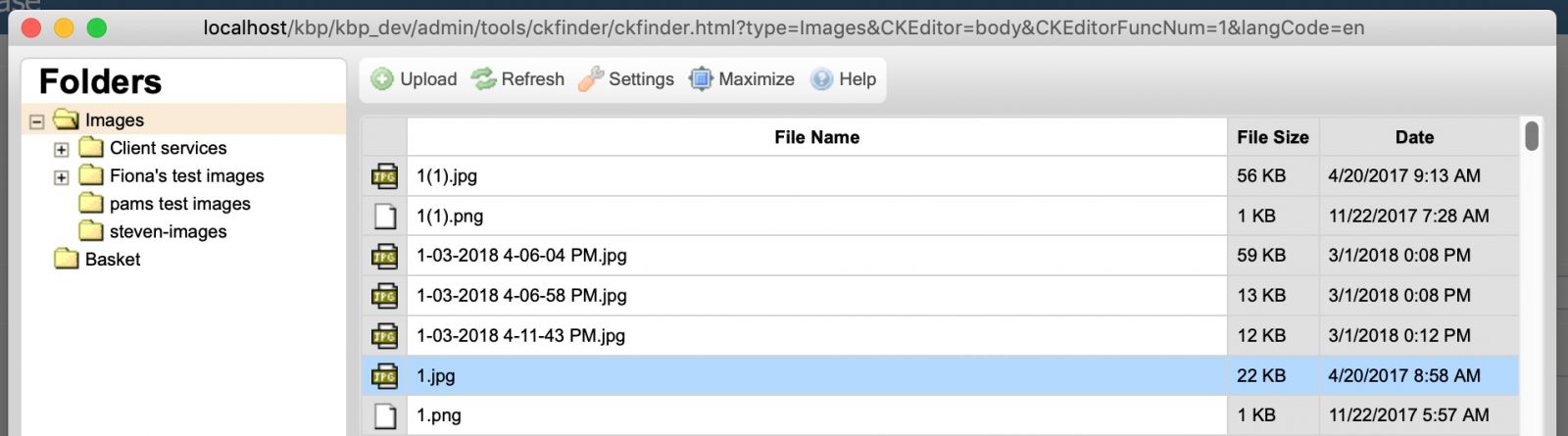
- Find file on server, double click on the name of the file you want to add
- This takes you back to the Image Properties box with the address of the file in the URL line.
- This is the minimum you need to do to add the picture. You can optimize it by adding alternative text, resizing it, adding borders or margins, adding links or modifying the style.
- Click OK to add the picture to the article.
Tip
- You can "drag and drop" an image to the HTML editor, it will added to cusror position of an editor.


